Order Window
Orders live in the Wallet tab of the Dex page: the Open orders section lists live orders, and the History toggle switches to settled and cancelled ones. Each order is a collapsed card showing the pair, side, price and fill progress; expanding it opens the full Order Window. Some fields only appear for order types that use them.
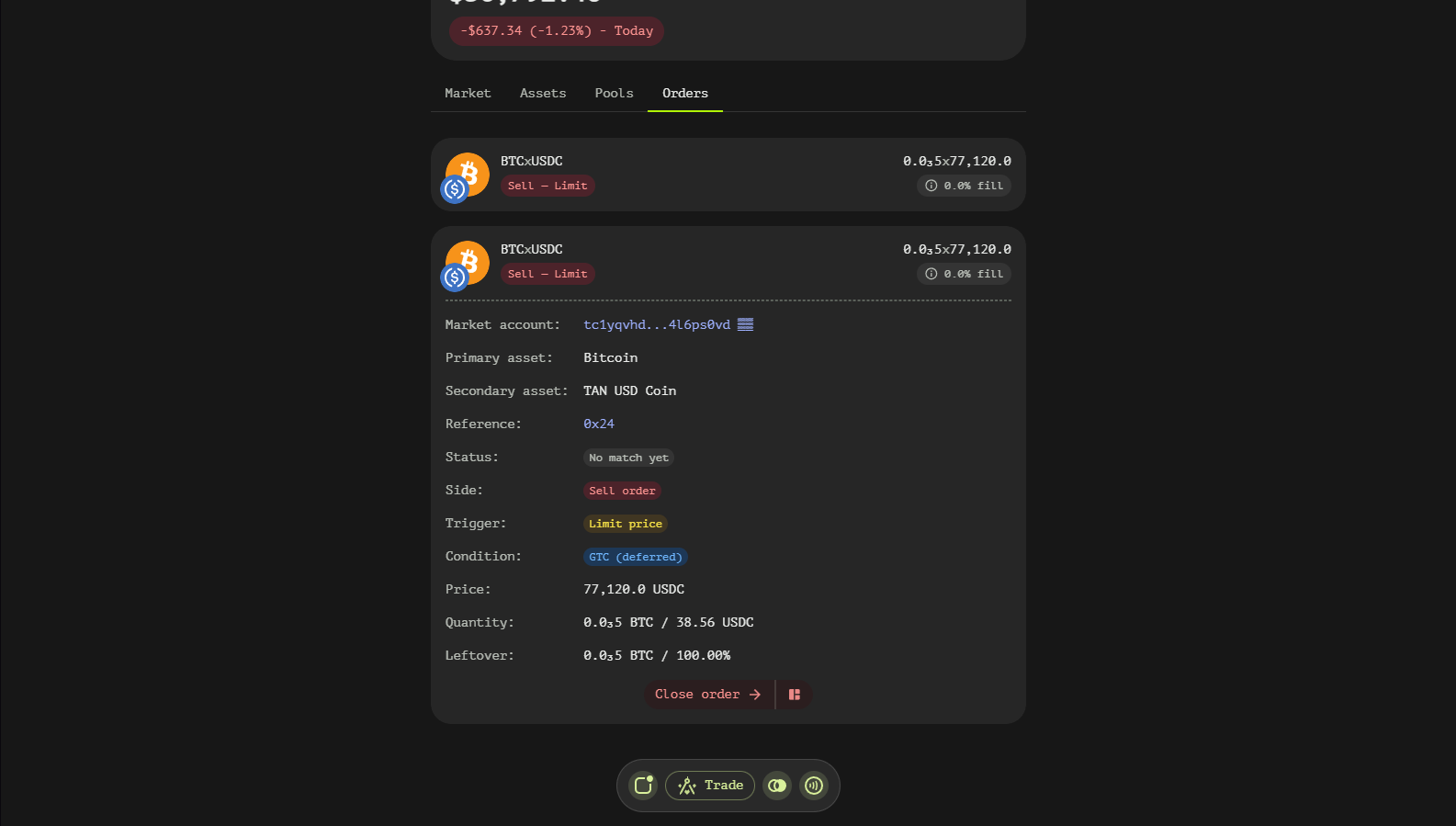
Order Window Fields
General Order Information
- Market account — the address of the order book contract where the order was placed (click to open that market's portfolio view).
- Primary asset — the first asset of the pair (BTC in BTC/USDC).
- Secondary asset — the second asset of the pair.
- Reference — the internal order ID assigned by the contract, shown in hex; copyable.
- Status — the fill status: pending, partially filled, filled, or inactive once settled/cancelled.
- Side — buy or sell.
Order Trigger and Condition
- Trigger — what starts execution: market price, limit price or stop price.
- Condition — the time-in-force policy, such as Good-Till-Cancelled, immediate or deferred.
Price and Stop Details
- Price — the worst acceptable execution price; a Base price row appears when the effective price differs.
- Stop price — the price at which a stop order triggers.
- Trailing step — the market move required to shift the stop price.
- Trailing distance — the absolute or relative gap kept from the market price for trailing orders.
- Price slippage — the maximum tolerated price slippage (shown as a percentage or absolute price for market orders).
Quantity and Leftover
- Quantity — the ordered amount, quoted in the primary asset and, when applicable, its secondary-asset value.
- Leftover — what remains to be filled, in token terms and as a percentage of the order.
Using the Order Window
- Identify the order by market account and asset pair.
- Watch Status and Leftover to track fills.
- Verify Trigger and Condition to know when and how the order executes.
- Keep stop, trailing and slippage settings aligned with your strategy.
Orders are created on the terminal's Order tab and cancel from the expanded card while they remain active.